

Lifecycle
A run moves through these statuses: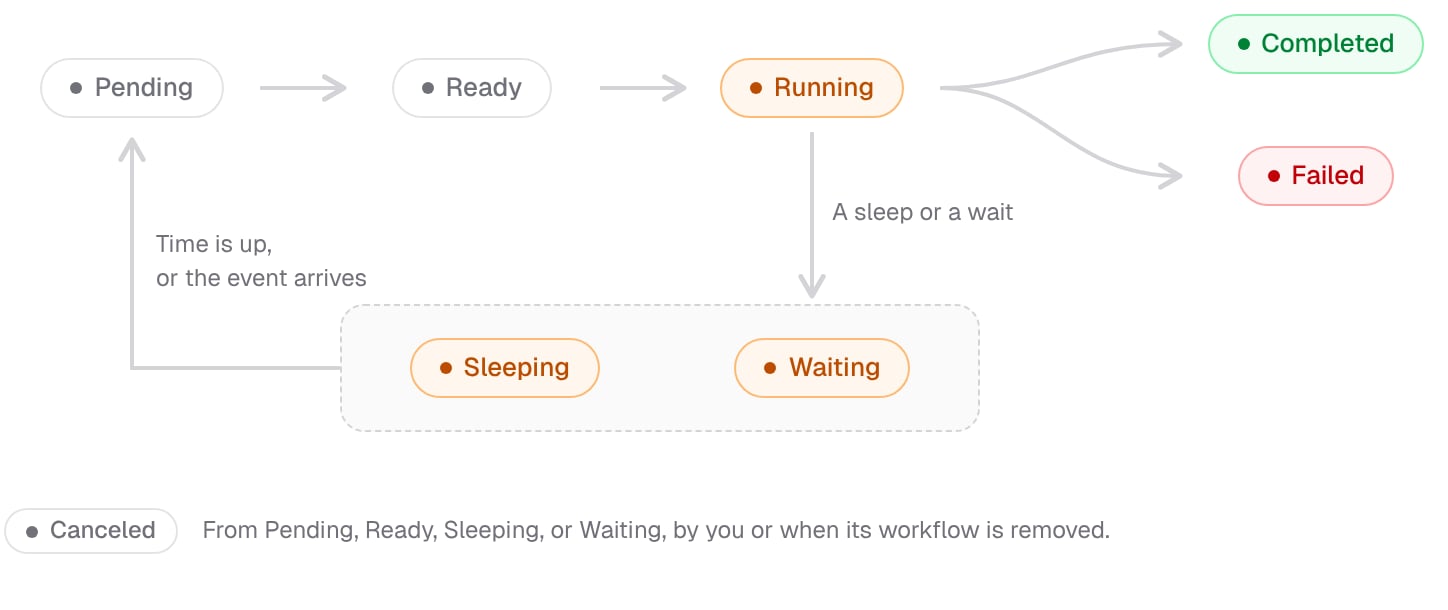
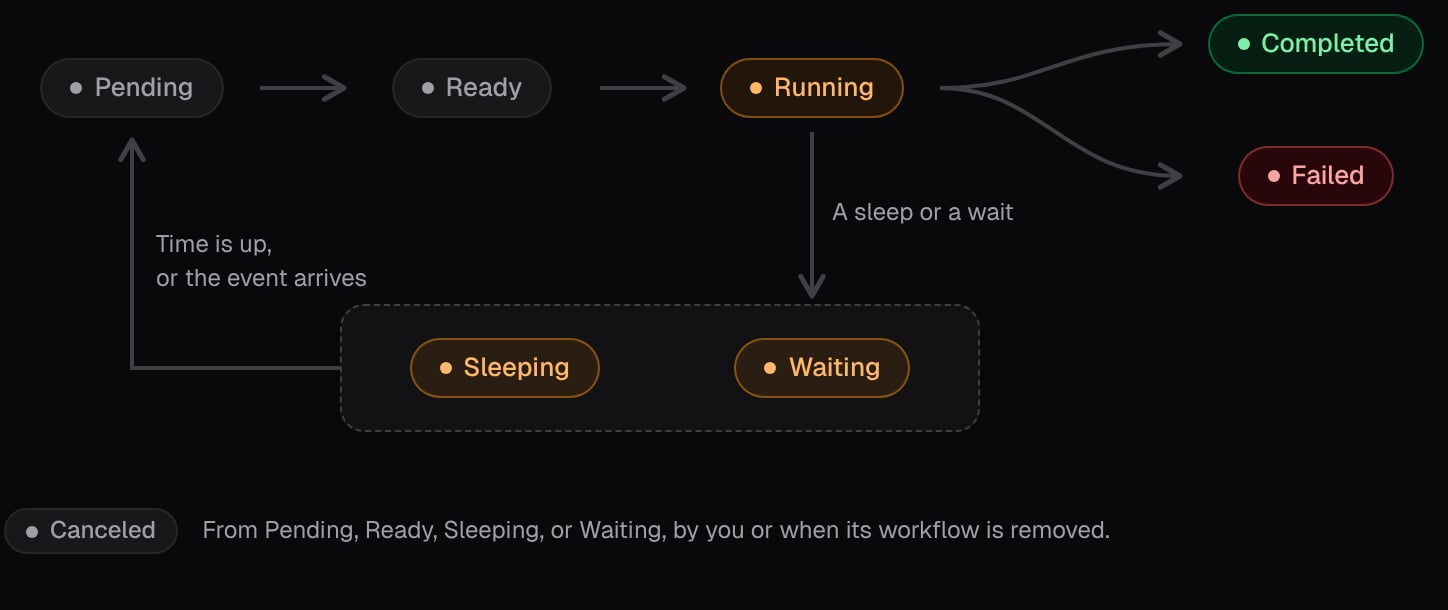
Nelkap sends pending runs to your app every minute, so a new run starts within a minute of being created, unless it waits for room under a concurrency limit. A run that wakes from a sleep or a wait goes back to Pending, and is sent to your app the same way.
Payload
The payload is the input of the run: the value your workflow receives as its argument, on every call. It’s any JSON value, up to your plan’s request size of 1 to 3 MB. Where it comes from depends on how the run started:
The payload is sent as JSON, so a
Date reaches your workflow as a string.
Tags
Tags are labels you give a run, so you can find it later, like the customer it works for. Pass them when you start the run:Triggers
Each run records how it started, shown as its trigger:Find a run
The Runs page of the console lists runs newest first, with their workflow, project, trigger, status, start, end, duration, and number of steps. Narrow the list down by:- Workflow, tag, trigger, or status.
- Period: the last hour, 24 hours, 3 days, 7 days, 15 days, or 30 days.
- Project, chosen at the top of the page.
Run details
Open a run to see everything about it:- Its payload, as your workflow received it.
- Its error, if it failed: the message your code threw, or the reason Nelkap stopped it.
- Its ID, its tags, and the event that started it, if any.
- When it was created, sent to your app, started, and ended, and how long it took.
- Its status. A waiting run also shows the key it’s waiting on.
Replay a run
Replay an ended run to run it again, for example once you’ve fixed the bug that made it fail. Nelkap starts a new run of the same workflow, with the same payload and tags, and its trigger shows as Manual. Every step runs from the start, and the original run stays as it was, so you can compare the two.- You can replay a run that completed, failed, or was canceled.
- Its workflow must still be registered.
- A run started by an event is replayed with the event’s payload, as a run of its own. The replay doesn’t start the other workflows that listened for the event.
Cancel a run
Cancel a run to make sure it never resumes. You can cancel a run that is pending, ready, sleeping, or waiting. Once canceled, it’s never sent to your app again. A running run can’t be canceled, since your app is executing it. To stop all the runs of a workflow, remove the workflow fromregisterWorkflows: its runs that haven’t started yet, or are sleeping or waiting, are canceled at once.
Permissions
See Members and roles.
Retention
An ended run stays in your project, with its steps, for the history of your plan:
Runs still in progress are kept for as long as they last, even a year of waiting. To keep ended runs longer, export them.